LDAP
Add a LDAP Server
In
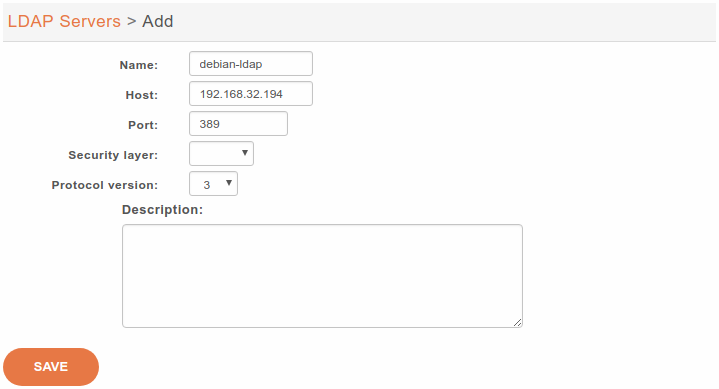
Adding a LDAP server
Enter the following information:
Name: the server’s display name
Host: the hostname or IP address
Port: the port number (default: 389)
Security layer: select SSL if it is activated on your server and you want to use it (default: disabled)
SSL means TLS/SSL (doesn’t mean StartTLS) and port 636 should then be used
Protocol version: the LDAP protocol version (default: 3)
Notes on SSL/TLS usage
If you are using SSL with an LDAP server that is using a CA certificate from an
unknown certificate authority, you’ll have to put the certificate file as a
single file ending with .crt into /usr/local/share/ca-certificates
and run update-ca-certificates.
You also need to make sure that the /etc/ldap/ldap.conf file contains a
line TLS_CACERT /etc/ssl/certs/ca-certificates.crt.
After that, restart spawn-fcgi with service spawn-fcgi restart.
Also, make sure to use the FQDN of the server in the host field when using SSL. The host field must match exactly what’s in the CN attribute of the server certificate.
Add a LDAP Filter
Next thing to do after adding a LDAP server is to create a LDAP filter.
In :
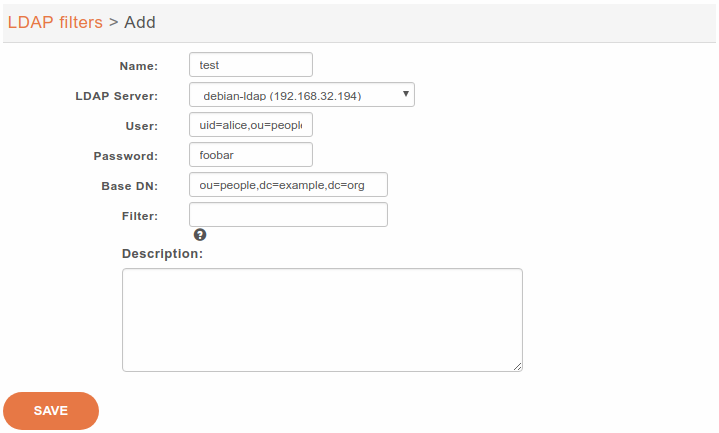
Adding a LDAP Filter
Enter the following information:
Name: the filter’s display name
LDAP server: the LDAP server this filter applies to
User: the
dnof the user used to do search requestsPassword: the password of the given user
Base DN: the base
dnof search requestsFilter: if specified, changes the default filter
Use a Custom Filter
The Filter field has two rather different uses, depending on whether it
contains the %Q pattern, which is replaced by what the user typed.
As a restriction, without %Q — the filter is combined with the
direct match fields of the directory definition using an &. The
per-word search still applies, and the filter only
narrows the set of entries that can ever be returned. This is the recommended way to
restrict a directory:
st=CanadaobjectClass=inetOrgPersonmail=*@example.org
As the search itself, with %Q — the filter expresses the matching logic, and
%Q receives the whole search term:
cn=*%Q*&(cn=*%Q*)(mail=*@example.org)|(cn=*%Q*)(displayName=*%Q*)
Important
%Q never receives the individual words, so a filter using it requires the whole
term to appear as one attribute. Prefer expressing the searched attributes in direct match and keeping the
filter for conditions independent of the search term.
Warning
A filter without either %Q or any direct match breaks the search mechanism.
Add a Directory Definition
The next step is to add a directory defintion for the LDAP filter you just created, like for other Directories.
In :
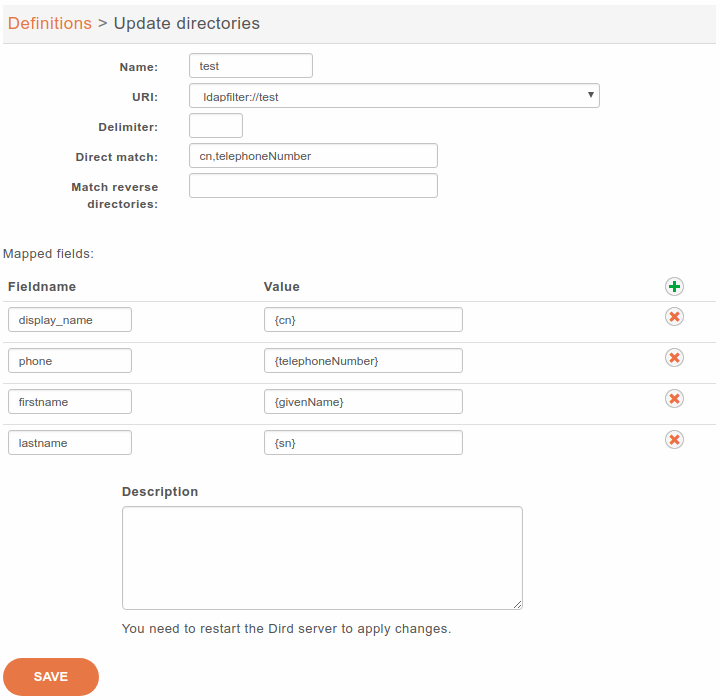
Search on each word of the search term
The search term is split on spaces, and every word is searched in every field of
direct match, the results being combined with an | (or).
Given a directory definition with a direct match
cn,oWhen a user searches for
boyerThen the resulting filter is
(|(cn=*boyer*)(o=*boyer*))When a user searches for
boyer oliThen the resulting filter is
(|(cn=*boyer*)(o=*boyer*)(cn=*oli*)(o=*oli*))If the LDAP filter also has a custom-filter
st=CanadaThen the resulting filter is
&(st=Canada)(|(cn=*boyer*)(o=*boyer*)(cn=*oli*)(o=*oli*))
Because the words are combined with an |, an entry matching a single word is
returned as well. Entries are then ranked with dird result ranking.
Note
Only spaces separate words here. A term such as jean-michel is searched as one
word by the LDAP filter.