Users
Users Configuration.
User lines
Lines can be configured from the Lines tab when creating a user. Users with line Unique Account, Phone or WebRTC can easily edit their line type from the same menu.

Users with line type Custom cannot change line type. In that case, the line should be deleted and created again with a new line type.
Simultaneous Calls Limit
Overview
The simultcalls parameter controls the maximum number of concurrent calls a user can handle. When this limit is reached, additional incoming calls will be sent to the busy no answer scenario instead of ringing the user’s device.
What Counts Toward the Limit
The simultcalls counter tracks all active calls [1] involving the user, regardless of how the call was initiated or received:
Calls [2] made by the user
Calls towards the user either:
directly to the user (internally or via its incoming call (i.e. DID))
or coming via groups where the user is a member
or coming via queues where the user’s agent is logged in
or coming via boss-secretary filter calls
Behavior
Given:
User U1 has simultcalls = 1
G1 is a group which U1 is a member of
G2 is a group which U1 is a member of and which has the Call a member already in line activated
Q1 is a queue which U1’s agent is a member of
Q2 is a queue which U1’s agent is a member of and which has the Call a member already in line activated
U1 Current Call State |
New Call Towards U1 |
Result |
|---|---|---|
U1 calls [2] |
U2 calls U1 directly |
Busy |
U1 calls [2] |
U2 calls group G1 |
U1 not called (InUse) |
U1 calls [2] |
U2 calls group G2 |
U1 not called |
U1 calls [2] |
U2 calls queue Q1 |
U1 agent not called (InUse) |
U1 calls [2] |
U2 calls queue Q2 |
U1 agent not called |
U1 on call (via a group) |
U2 calls U1 directly |
Busy |
U1 on call (via a queue) |
U2 calls U1 directly |
Busy |
U1 on call (via Boss/secretary filter) |
U2 calls U1 directly |
Busy |
Note
Even when the limit is reached, the user can still initiate new outgoing calls.
Note
The behavior can be reverted to pre-Quantum by editing /etc/xivo/asterisk/xivo_globals.conf file and setting
XIVO_SIMULTCALLS_COUNT_ONLY_INCOMING = 1 and then reloading the dialplan.
In this mode only direct incoming call to the user are counted in its simultcalls.
Limitation
Group calls for Unique Account users: for unique account users with multiple ringing devices selected, when a call arrives through a group, each ringing device is counted separately in the simultcalls counter during the ringing phase.
Example: UA user U1 selected 2 ringing devices (WebApp and Desktop phone).
When a new call arrives to U1 via a group
During ringing, the simultcalls counter reaches 2 (2 ringing devices) - the call is ringing on WebApp and Desktop phone
Once U1 answers, it drops to 1
Note therefore that, if U1 had a simultcalls of 2 and were to be called during this call group rung, the new call would be refused (as the limit would be reached). Once U1 would have answered this group call, a new call could be presented to U1.
Function keys
Function keys can be configured to customize the user’s phone keys. Key types are pre-defined and can be browsed through the Type drop-down list. The Supervision field allows the key to be supervised. A supervised key will light up when enabled. In most cases, a user cannot add multiple times exactly the same function key (example : two user function keys pointing to the same user). Adding the same function key multiple times can lead to undefined behavior and generally will delete one of the two function keys.
For User keys, start to key in the user name in destination, XiVO will try to complete with the corresponding user.
If the forward unconditional function key is used with no destination the user will be prompted when the user presses the function key and the BLF will monitor ALL unconditional forward for this user.
Extensions
*3 (online call recording)
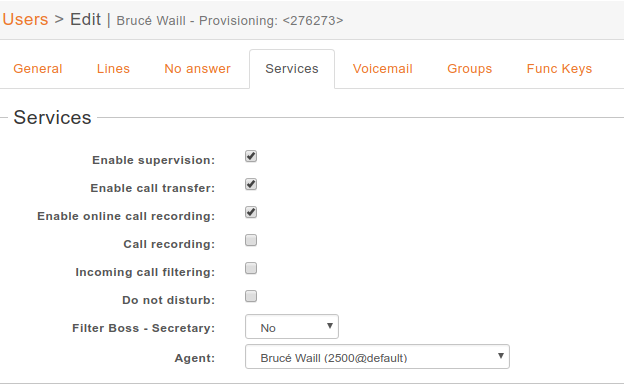
To enable online call recording, you must check the “Enable online call recording” box in the user form.
Users Services
When this option is activated, the user can press *3 during a conversation to start/stop online
call recording. The recorded file will be available in the monitor directory of the
menu.
*26 (call recording)
You can enable/disable the recording of all calls for a user in 2 different way:
By checking the “Call recording” box of the user form.
Users Services
By using the extension *26 from your phone (the “call recording” option must be activated in ).
When this option is activated, all calls made to or made by the user will be recorded in the monitor
directory of the menu.
*55 (echo test)
To test your microphone and speaker, you can call the echo test application. The application will echo everything what you speak.
Dial the *55 number from your phone or application.
You should hear “Hello World” followed by the “Echo” announcement.
After the announcement, you will hear everything what you say.
Press # or hangup to exit the echo test application.
Using this application you may also get the latency between you and the server running the echo test.