User Import, Export and Update
CSV Import
Users can be imported and associated to other resources by use of a CSV file. CSV Importation can be used in situations where you need to modify many users at the same in an efficient manner, or for migrating users from one system to another. A CSV file can be created and edited by spreadsheet tools such as Excel, LibreOffice/OpenOffice Calc, etc.
CSV file
The first line of a CSV file contains a list of field names (also sometimes called “columns”). Each new line afterwards are users to import. CSV data must respect the following conditions:
Files must be encoded in UTF-8
Fields must be separated with a
,Fields can be optionally quoted with a
"Double-quotes can be escaped by writing them twice (e.g.
Robert ""Bob"" Jenkins)Empty fields or headers that are not defined will be considered null.
Fields of type bool must be either
0for false, or1for true.Fields of type int must be a positive number
Additionally, these restrictions for specific fields must also be respected:
Field labels: All user labels in this field must already exist before the import
In the following tables, columns have been grouped according to their resource. Each resource is created and associated to its user when all required fields for that resource are present.
User
Field |
Type |
Required |
Values |
Description |
|---|---|---|---|---|
entity_id |
int |
Yes |
Entity ID (Defined in menu ) |
|
firstname |
string |
Yes |
User’s firstname |
|
lastname |
string |
User’s lastname |
||
string |
User’s email |
|||
language |
string |
de_DE, en_US, es_ES, fr_FR, fr_CA |
User’s language |
|
mobile_phone_number |
string |
Mobile phone number |
||
outgoing_caller_id |
string |
Customize outgoing caller id for this user |
||
enabled |
bool |
Enable/Disable the user |
||
supervision_enabled |
bool |
Enable/Disable supervision |
||
call_transfer_enabled |
bool |
Enable/Disable call transfers by DTMF |
||
dtmf_hangup_enabled |
bool |
Enable/Disable hangup by DTMF |
||
simultaneous_calls |
int |
Number of calls a user can have on his phone simultaneously |
||
ring_seconds |
int |
Must be a multiple of 5 |
Number of seconds a call will ring before ending |
|
call_permission_password |
string |
Overwrite all passwords set in call permissions associated to the user |
||
labels |
string |
list separated by semicolons ( |
Names of the labels to assign to the user |
CTI Profile
Field |
Type |
Required |
Values |
Description |
|---|---|---|---|---|
cti_profile_enabled |
bool |
No |
Activates the CTI account for this user |
|
username |
string |
Yes, if profile enabled |
CTI Login username |
|
password |
string |
Yes, if profile enabled |
Must be 4 characters long [1]. |
CTI Login password |
cti_profile_name |
string |
Yes, if profile enabled |
CTI profile (Defined in menu ) |
Phone
Field |
Type |
Required |
Values |
Description |
|---|---|---|---|---|
exten |
string |
Yes |
Number for calling the user. The number must be inside the range of acceptable numbers defined for the context |
|
context |
string |
Yes |
Context |
|
line_protocol |
string |
Yes |
sip, webrtc, ua |
Line protocol |
line_site |
string |
Unique name of one of the Template line (defined in menu ) |
||
sip_username |
string |
SIP username |
||
sip_secret |
string |
SIP secret |
||
sip_options |
string |
list key=value separated by
semicolons ( |
List of SIP options formatted as key=value pairs separated by semicolons ( |
Incoming call
A user can have more than one incoming call. To assign several incalls, put the same number of
values in incall_exten and incall_context, separated by semicolons (;), so that they
match positionally (the first exten goes with the first context, and so on). The two fields must
contain the same number of values, otherwise the row is rejected.
Import and update are add-only for incalls: the incalls listed in the CSV are associated to the user in addition to those already attached. An incall is never modified or removed by an import or update — remove in the webi under .
Field |
Type |
Required |
Values |
Description |
|---|---|---|---|---|
incall_exten |
string |
Yes |
one or more numbers separated by
semicolons ( |
Number(s) of the incoming call(s) with a customized destination towards the user |
incall_context |
string |
Yes |
one or more contexts separated by
semicolons ( |
Context(s) from associated to the incoming call rule. Default is from-extern. |
incall_ring_seconds |
int |
Number of seconds a call will ring before ending |
Voicemail
Field |
Type |
Required |
Values |
Description |
|---|---|---|---|---|
voicemail_name |
string |
Yes |
Voicemail name |
|
voicemail_number |
string |
Yes |
Voicemail number |
|
voicemail_context |
string |
Yes |
Voicemail context |
|
voicemail_password |
string |
A sequence of digits or # |
Voicemail password |
|
voicemail_email |
string |
Email for sending notifications of new messages |
||
voicemail_attach_audio |
bool |
Enable/Disable attaching audio files to email message |
||
voicemail_delete_messages |
bool |
Enable/Disable deleting message after notification is sent |
||
voicemail_ask_password |
bool |
Enable/Disable password checking |
Call permissions
Field |
Type |
Required |
Values |
Description |
|---|---|---|---|---|
call_permissions |
string |
list separated by semicolons ( |
Names of the call permissions to assign to the user |
Importing a file
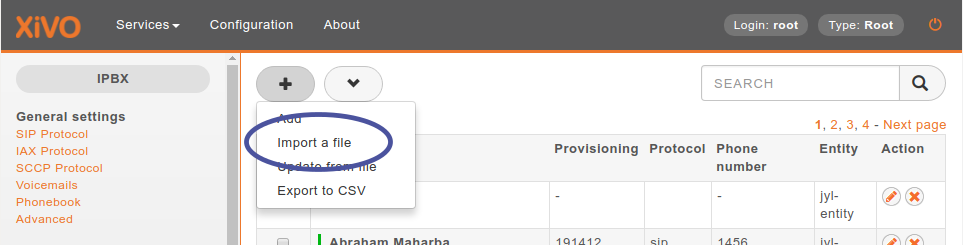
Once your file is ready, you can import it via . At the top of the page there is a plus button. A submenu will appear when the mouse is on top. Click on Import a file.
Import Users
Examples
The following example defines 2 users who each have a phone number.
entity_id,firstname,lastname,exten,context,line_protocol 1,John,Doe,1000,default,sip 1,George,Clinton,1001,default,sip
The following example imports a user with a phone number and a voicemail:
entity_id,firstname,lastname,exten,context,line_protocol,voicemail_name,voicemail_number,voicemail_context
1,John,Doe,1000,default,sip,Voicemail for John Doe,1000,default
The following exmple imports a user with both an internal and external phone number (e.g. incoming call):
entity_id,firstname,lastname,exten,context,line_protocol,incall_exten,incall_context
1,John,Doe,1000,default,sip,2050,from-extern
The following example imports a user with two incoming calls. The incall_exten and
incall_context fields each carry two semicolon-separated values that match positionally
(2050/from-extern and 2051/from-extern):
entity_id,firstname,lastname,exten,context,line_protocol,incall_exten,incall_context
1,John,Doe,1000,default,sip,2050;2051,from-extern;from-extern
CSV Update
The field list for an update is the same as for an import with the addition of the column uuid, which is mandatory. For each line in the CSV file, the updater goes through the following steps:
Find the user, using the uuid
For each resource (line, voicemail, extension, etc) find out if it already exists.
If an existing resource was found, associate it with the user. Otherwise, create it.
Update all remaining fields
The following restrictions must also be respected during update:
Columns that are not included in the CSV header will not be updated.
A field that is empty (i.e, “”) will be converted to NULL, which will unset the value.
Incalls are added, never removed: the incalls listed in
incall_exten/incall_contextare associated to the user on top of the ones it already has (see Incoming call).All user labels in the labels field must already exist before the update
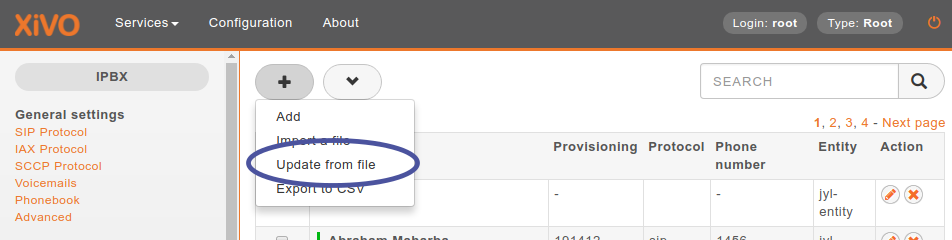
Updating is done through the same menu as importing (). A submenu will appear when the mouse is on top. Click on Update from file in the submenu.
Import/Update Log
Beginning, end and all import/update errors and warnings are logged to /var/log/xivo-confd.log.
CSV import/update can take several minutes. If it reaches a timeout you’ll see a message in the webi explaining that the import/update continues in the background and that you should check the log to verify that it was successfully finished.
If there are any invalid CSV rows, associated warnings or errors will be printed in the log:
If there are warnings only the changes will be applied.
If there is one error or more all changes will be rollbacked.
Each error identifies the offending row both by its line number and by the user it describes (the
firstname/lastname, or the uuid when the row carries only a uuid), so a failing row can be found
quickly in a large import.

Import or Update timeout message
CSV Export
CSV exports can be used as a scaffold for updating users, or as a means of importing users into another system. An export will generate a CSV file with the same list of columns as an import, with the addition of uuid and provisioning_code.
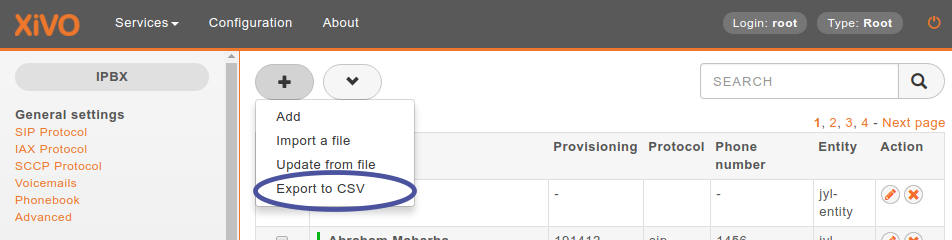
Exports are done through the same menu as importing (). Click on Export to CSV in the submenu. You will be asked to download a file.