Features
Overview
Open video from UC Assistant, CC Agent, Switchboard
Call a user with video support
Invite another internal user in the conference you’re currently attending
Link to access meetingroom for external participant
Create a static meeting room (via XiVO PBX webi)
Create a personal meeting room from the assistant (UC Assistant only)
Join a meeting room via a phone
Join a meeting room via incoming call
Join a meeting room from an incoming call through an IVR to choose which MR to join
Get instant system notifications when being invited to a video conference
Limitations
Personal meeting room creation can only be done via the UC Assistant (it is not available for CC Agent or Switchboard)
There is no history of the video calls/conference (no history of video conference you joined nor video conference invitation you received/missed)
There must be at least one video participant for the meeting room to work. If only audio participants are in the conference they won’t be able to speak to each other.
Invite to conference / Start a video call:
these features currently works only if the chat is enabled
the invite to conference invitation has a timeout set to 15s which is not configurable
if PIN code is modified while you are already in one of your personal meeting room, you can’t invite other people until you leave then rejoin it
CC Agent / Switchboard related notes:
these features do not work for a “roaming agent”: i.e. an agent that is logged on another user’s line (it applies to CC Agent or Switchboard application)
when an agent is in a meetingroom, he still receives queue calls. He has to put himself on pause manually to prevent it.
Customization
Timezone
Timezone is configured via the TZ env var in the .env file.
To change the Timezone, change the TZ value in the .env and recreate the stack via meetingrooms-dcomp up -d.
Configure TURNS server to use port 443
By default the Meetingrooms is configured to provide its clients a TURN server configuration to be requested on port 3478. In some environement this port may not be accessible: in this case it may prevent the Meetingroom (audio and/or video) to work properly.
If - and only if - Edge was configured to expose TURNS on port 443 - see Expose TURNS server on port 443 - then Meetingrooms configuration can be changed to use it.
Important
Pre-requisite: configure Expose TURNS server on port 443 on Edge server.
Edit the
/etc/docker/meetingrooms/.envand change:TURN_HOSTby the TURN FQDN (same asTURN_FQDNenv var in Edge configuration)TURNS_PORTto 443for example:
#
# XiVO Edge vars
#
TURN_CREDENTIALS=4afe456ebdc0fe47ffb5f9a822b8404
TURN_HOST=edge-turn.mycorp.com # same as TURN_FQDN in Edge configuration
TURN_PORT=3478
TURNS_HOST=${TURN_HOST}
TURNS_PORT=443
Relaunch the services:
meetingrooms-dcomp up -d
Enable moderator for external participants
By default users joining the Meetingroom via a sharing link join as Guest (this is a new behavior since Quantum.02).
This can be changed by editing the Meetingroom configuration as follows:
Edit
/etc/docker/meetingrooms/.envand set in a new section at the bottom (if not already defined) which resetsXMPP_MUC_MODULESvar:# # Customized config # XMPP_MUC_MODULES=
Relaunch the services:
meetingrooms-dcomp up -d
Enable lobby for external participants
It is possible to configure Meetingrooms with “lobby rooms” for guests. With this setup:
users joining the Meetingroom via an sharing link join as Guest and wait in a *Lobby* room till a Moderator accepts them
internal users joining a Meetingroom via their Assistant application (UC Assistant, CC Agent) join the Meetingroom as Moderator
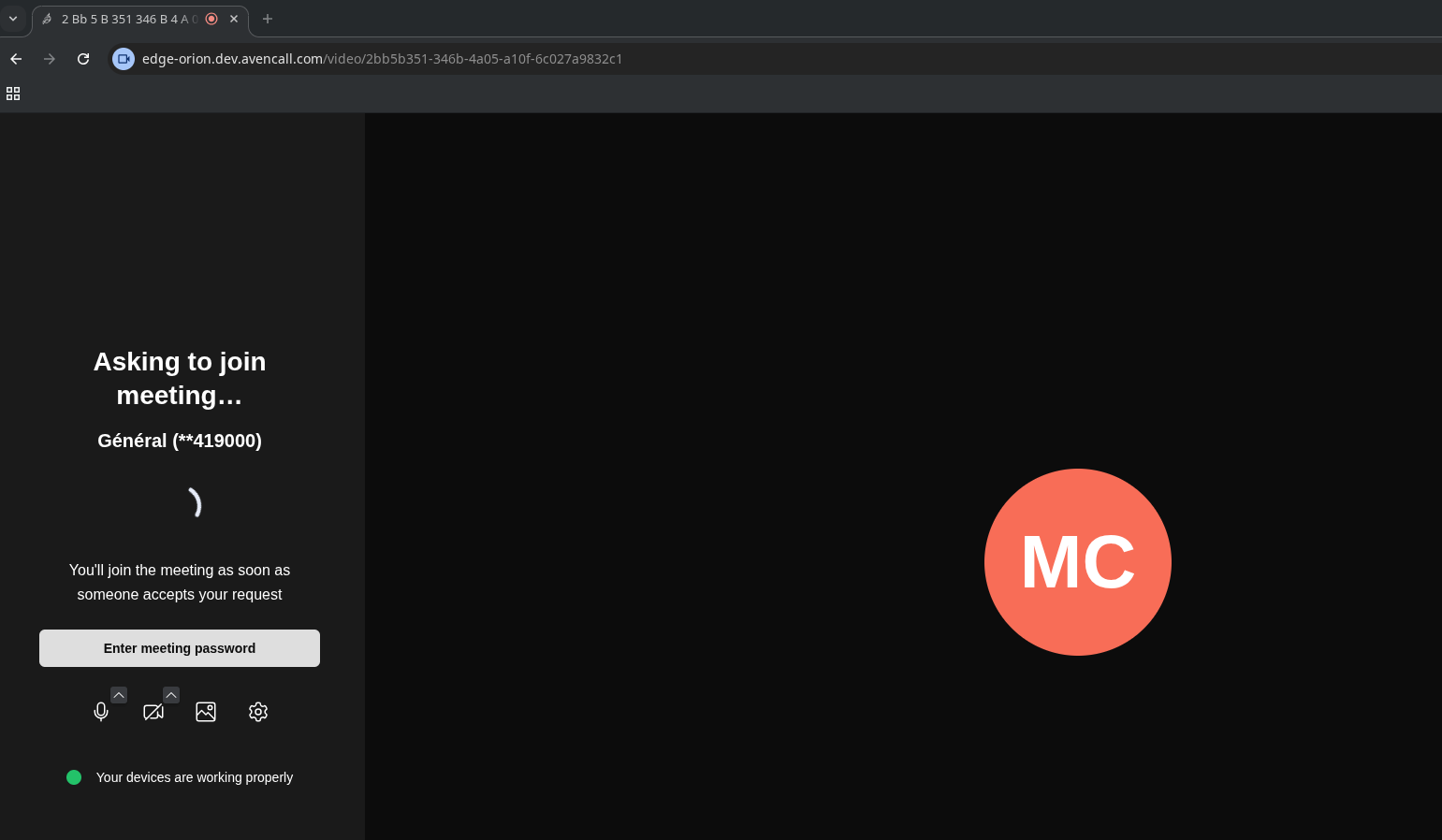
User joining via sharing link wait in a Lobby room till they are accepted by a Moderator
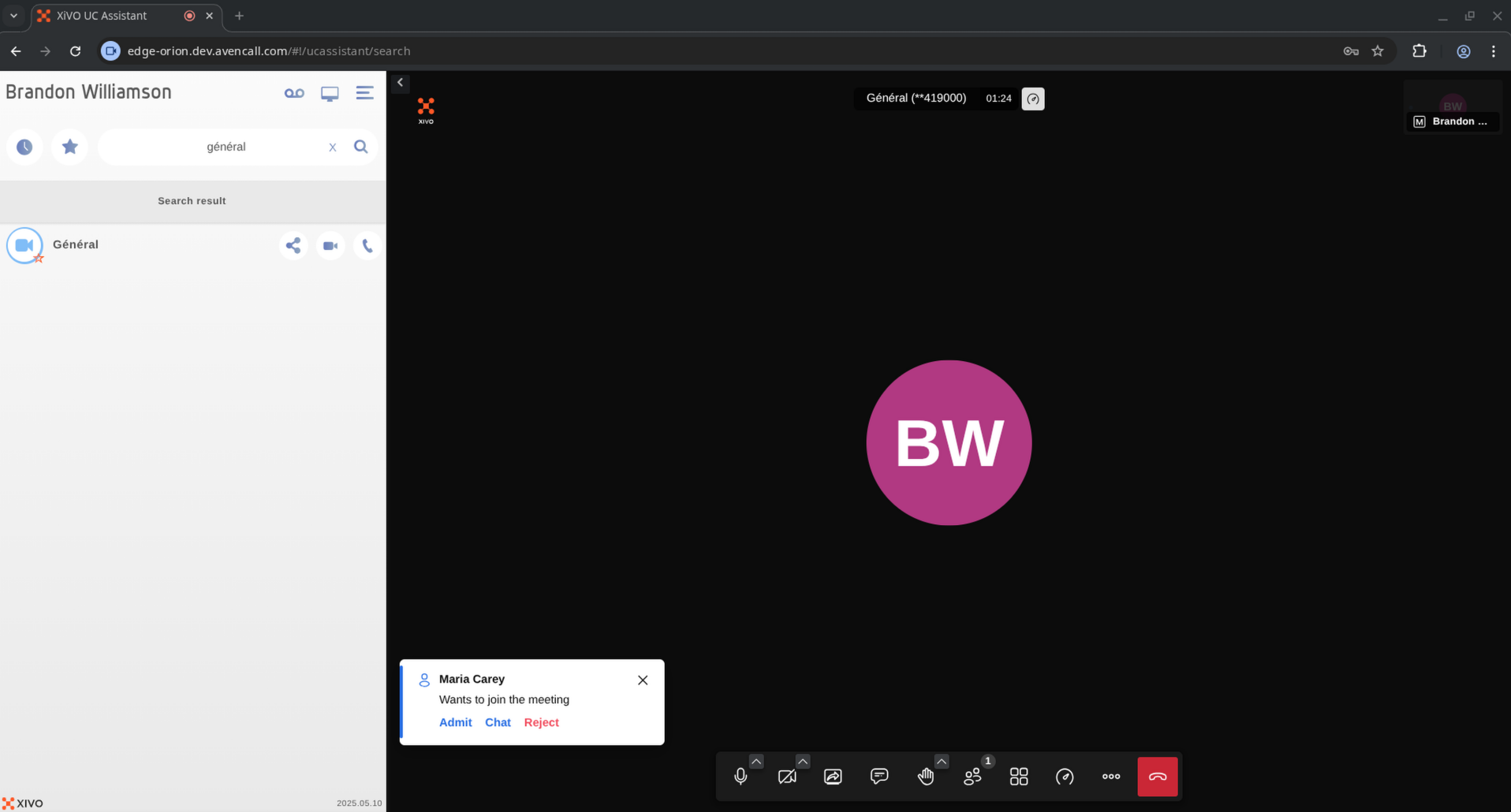
With lobby rooms activated, external users must be allowed to the meetingroom by a Moderator
To activate lobby rooms for guests, do the following:
Edit
/etc/docker/meetingrooms/.envand set in a new section at the bottom (if not already defined):# # Customized config # XMPP_MODULES=muc_size,persistent_lobby XMPP_MUC_MODULES=token_verification,token_affiliation,token_lobby_bypass,lobby_autostart
Relaunch the services:
meetingrooms-dcomp up -d
Disable audio for meetingrooms
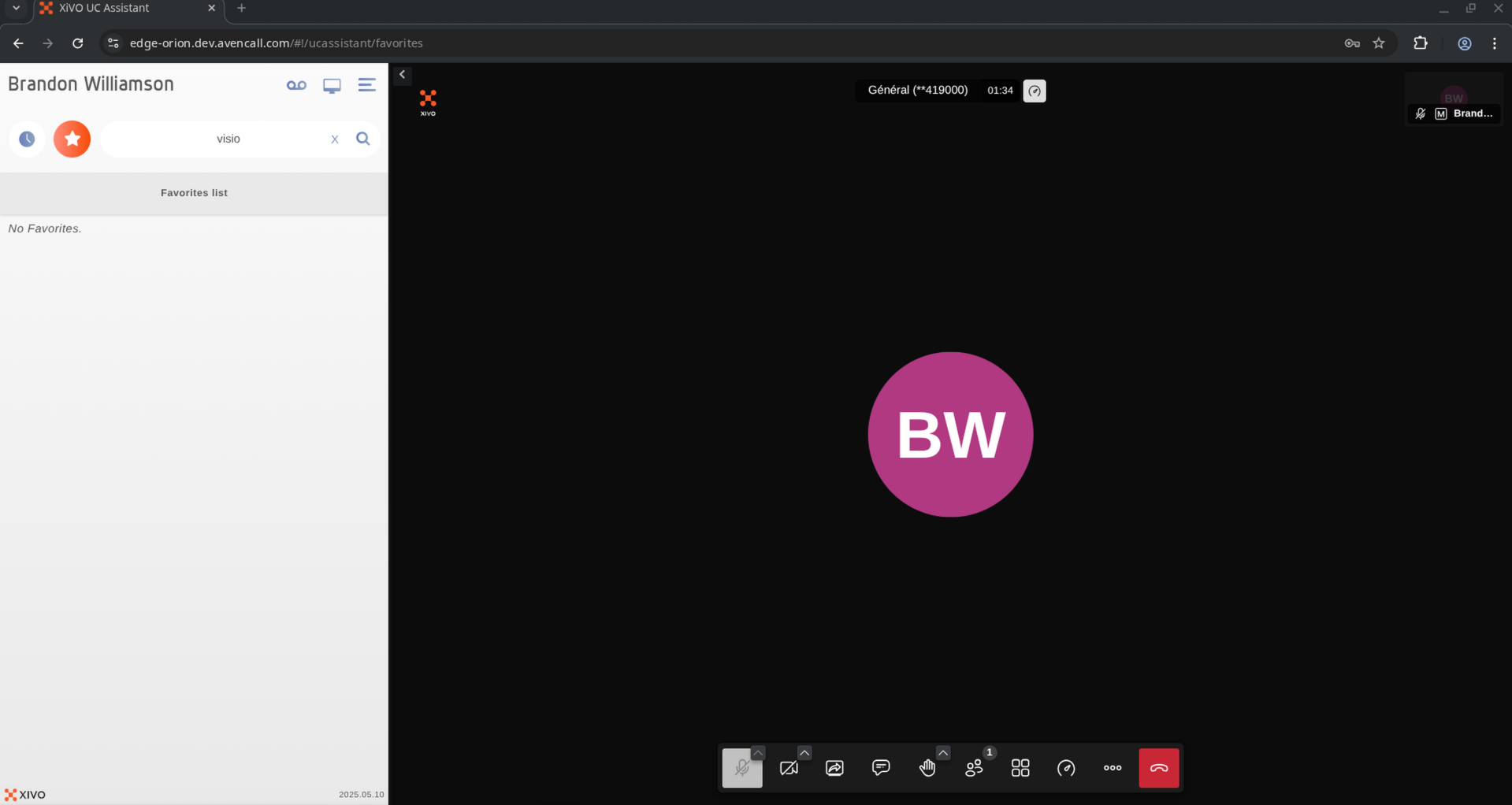
Meetingrooms can be used without audio. To do so globally:
Edit
/etc/docker/meetingrooms/.envand set in a new section at the bottom (if not already defined):# # Customized config # START_SILENT=true
Relaunch the services:
meetingrooms-dcomp up -d